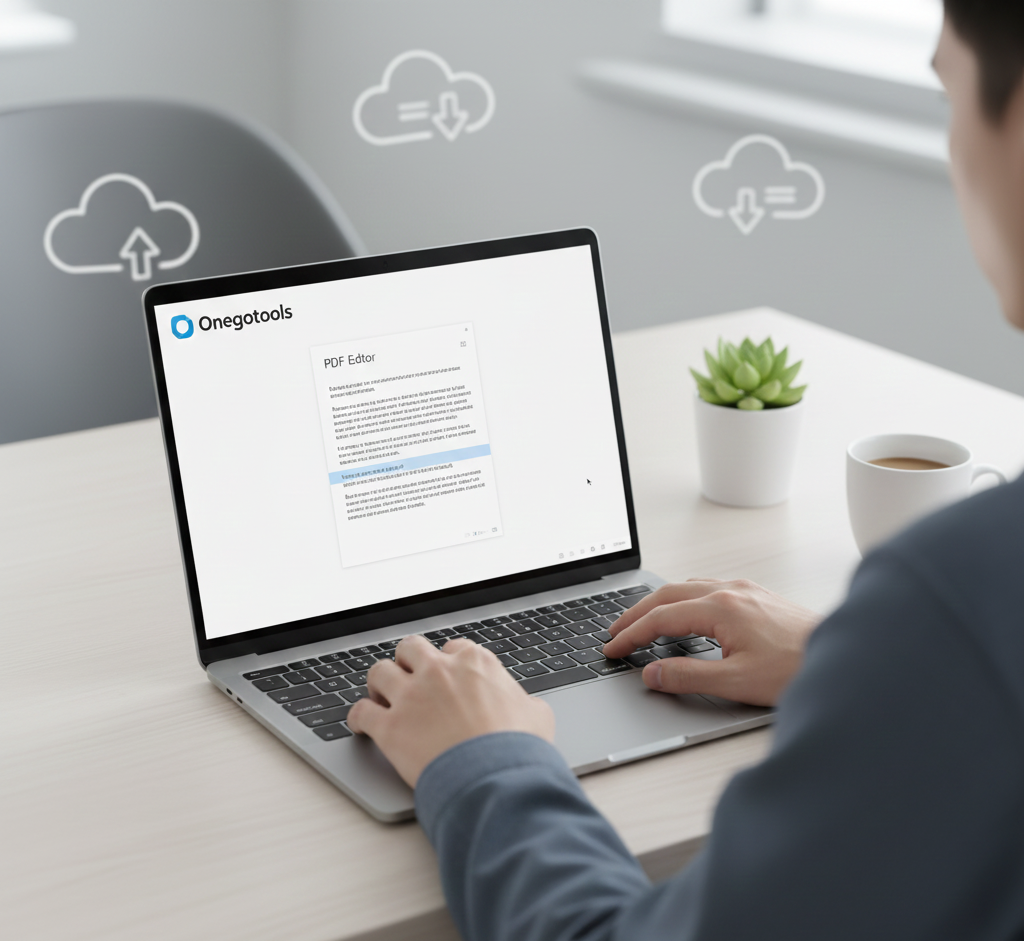
How to Easily Edit Text in Your PDF Files Without Installing Software
Portable Document Format (PDF) files are a standard for sharing documents, but sometimes you need to make changes. Editing text in a PDF used to require expensive software, but now, thanks to online PDF editors like Onegotools, you can modify PDF text quickly and easily, without installing anything!
This guide will walk you through the process of editing text in your PDF files online, completely free of charge. Whether you need to correct a typo, update information, or add new content, we've got you covered.
Table of Contents
- Introduction
- The Power of Online PDF Editors
- How to Edit Text in a PDF Online
- Adding Images to Your PDF
- Adding Annotations and Comments
- Adding E-Signatures
- FAQs
- Conclusion
The Power of Online PDF Editors
Online PDF editors have revolutionized the way we handle PDF documents. They offer a convenient and accessible way to modify PDF files without the need for expensive software licenses or complex installations. With a reliable internet connection, you can access these tools from anywhere, making them ideal for professionals, students, and anyone who needs to work with PDFs on the go.
Onegotools provides a suite of free PDF tools, including a powerful online PDF editor that lets you edit text, add images, annotate, and even sign your documents electronically. The best part? It's all done within your web browser, saving you time and resources.
Benefits of Using Online PDF Editors:
- No Software Installation: Access the tools directly from your browser.
- Cost-Effective: Many online PDF editors, like Onegotools, offer free services.
- Accessibility: Edit PDFs from any device with an internet connection.
- User-Friendly: Intuitive interfaces make editing PDFs simple, even for beginners.
How to Edit Text in a PDF Online
Editing text in a PDF file online is easier than you might think. Here’s a step-by-step guide using Onegotools:
- Go to Onegotools PDF Editor: Open your web browser and navigate to the Onegotools PDF editor tool.
- Upload Your PDF: Click the "Upload PDF" button and select the PDF file you want to edit from your computer.
- Select the "Edit Text" Tool: Once the PDF is uploaded, look for the "Edit Text" option in the toolbar.
- Click on the Text to Edit: Simply click on the text you want to modify. A text box will appear around the selected text.
- Make Your Changes: Type in your new text or make any necessary corrections.
- Save Your Changes: After you've finished editing, click the "Apply Changes" or "Save" button to save your modifications.
- Download Your Edited PDF: Download the updated PDF file to your computer.
[Screenshot Placeholder: Show the Onegotools PDF editor interface with text being edited]
Tip: Make sure to double-check your edits before downloading the file to ensure everything is accurate.
Adding Images to Your PDF
Sometimes, you may need to add images to your PDF document. Here’s how you can do it with Onegotools:
- Upload Your PDF: As before, start by uploading your PDF to the Onegotools PDF editor.
- Select the "Add Image" Tool: Look for the "Add Image" option in the toolbar.
- Choose Your Image: Click the "Browse" or "Upload" button to select the image file from your computer.
- Position and Resize the Image: Once the image is uploaded, you can drag it to the desired location and resize it by dragging the corners.
- Save Your Changes: Click the "Apply Changes" or "Save" button to save your modifications.
- Download Your Edited PDF: Download the updated PDF file to your computer.
[Screenshot Placeholder: Show the Onegotools PDF editor interface with an image being added to a PDF]
Adding Annotations and Comments
Annotations are a great way to add comments, highlights, and notes to your PDF. Here's how to do it:
- Upload Your PDF: Upload your PDF to the Onegotools PDF editor.
- Select the Annotation Tool: Look for tools like “Highlight,” “Underline,” “Strikethrough,” or “Add Comment.”
- Annotate Your PDF:
- Highlight: Click and drag to highlight text.
- Underline/Strikethrough: Click and drag to underline or strikethrough text.
- Add Comment: Click on the area where you want to add a comment, and a text box will appear. Type in your comment.
- Save Your Changes: Click the "Apply Changes" or "Save" button to save your modifications.
- Download Your Edited PDF: Download the updated PDF file to your computer.
[Screenshot Placeholder: Show the Onegotools PDF editor interface with annotations being added to a PDF]
Adding E-Signatures
Adding an e-signature to your PDF is crucial for contracts and agreements. Onegotools makes it simple:
- Upload Your PDF: Upload your PDF to the Onegotools PDF editor.
- Select the “Sign” Tool: Look for the “Sign” or “E-signature” option.
- Create or Upload Your Signature: You can either draw your signature, type it, or upload an image of your signature.
- Place Your Signature: Drag and drop your signature to the desired location on the PDF.
- Save Your Changes: Click the "Apply Changes" or "Save" button to save your modifications.
- Download Your Edited PDF: Download the updated PDF file to your computer.
[Screenshot Placeholder: Show the Onegotools PDF editor interface with a signature being added to a PDF]
FAQs
- Is it safe to edit PDFs online?
- Yes, reputable online PDF editors like Onegotools use secure connections to protect your data. Always ensure the website you are using has an HTTPS connection.
- Is Onegotools really free?
- Yes, Onegotools offers a range of free PDF tools, including the PDF editor. Some advanced features may require a subscription, but the basic editing functions are free.
- Can I edit scanned PDFs?
- Editing scanned PDFs directly can be challenging. You may need to use OCR (Optical Character Recognition) to convert the scanned image into editable text. Some online PDF editors offer OCR functionality.
- What file formats can I upload to Onegotools?
- Onegotools primarily supports PDF files. However, you can often convert other file formats to PDF before editing.
- How do I ensure my edited PDF looks professional?
- Use clear and legible fonts, maintain consistent formatting, and double-check your work for errors. Onegotools provides tools to help you maintain a professional look.
Conclusion
Editing text in your PDF files doesn't have to be a daunting task. With the help of free online PDF editors like Onegotools, you can easily modify text, add images, annotations, and e-signatures without installing any software. This saves you time, money, and hassle. Whether you're a student, professional, or anyone who frequently works with PDFs, Onegotools provides the tools you need to get the job done efficiently.
So, the next time you need to make a quick edit to a PDF, remember Onegotools and enjoy the convenience of online PDF editing!



Comments (0)
Leave a Comment